Terminal Height Control — See More of Your Session
You can now resize the terminal viewport to see more scrollback history at once. No more squinting at 24 rows — expand to 2x, 3x, 5x, or even 10x the default height.
The Dimension Badge
In the top-right corner of the terminal header, you'll see the current terminal size displayed as columns and rows (e.g. 80x24). Click it to open the resize popover.
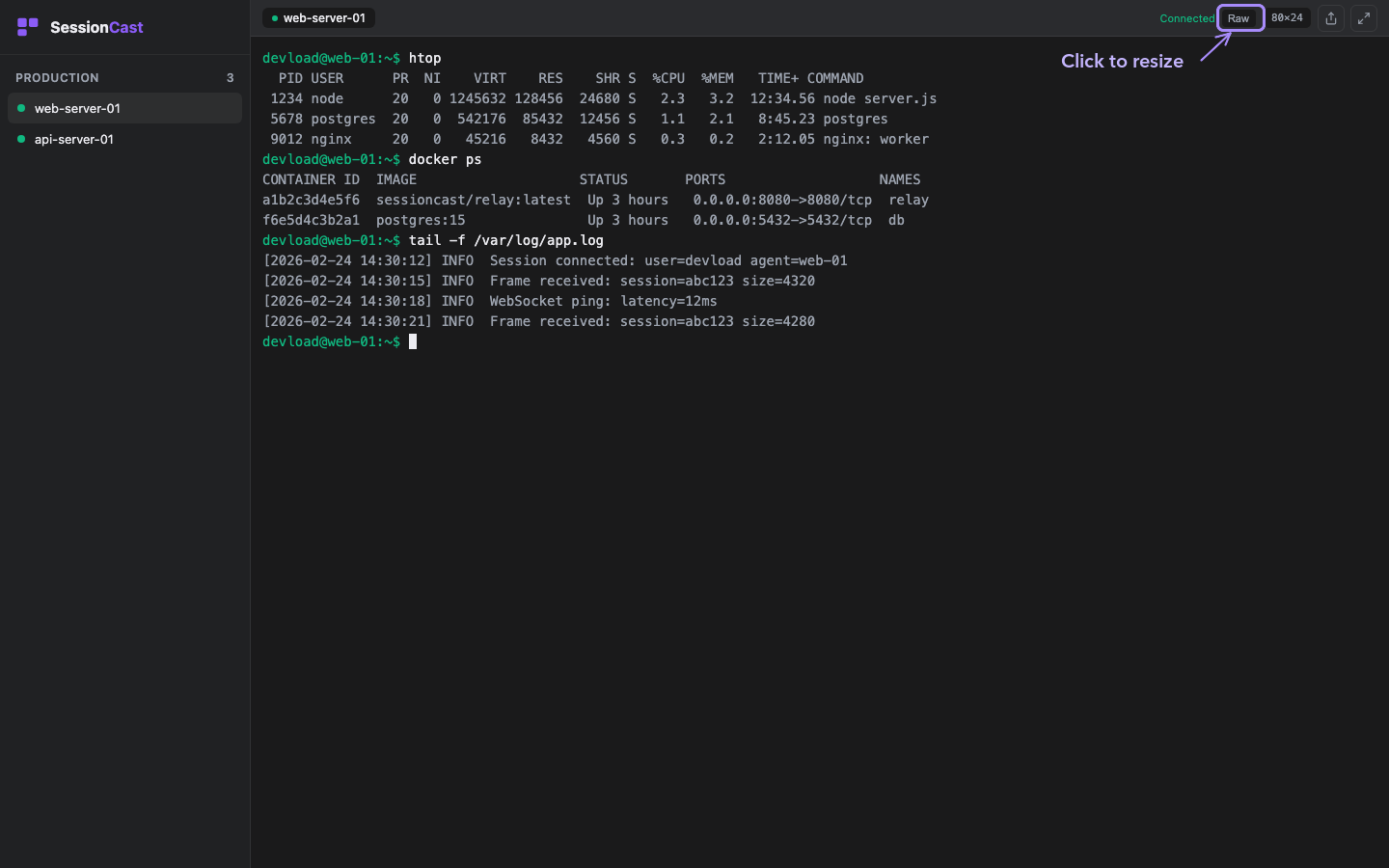
Choose a Height Multiplier
The popover lets you pick a height multiplier. Select 3x to triple the visible rows, or 10x to see a massive scrollback buffer. Hit Auto to return to the default fit-to-window mode.
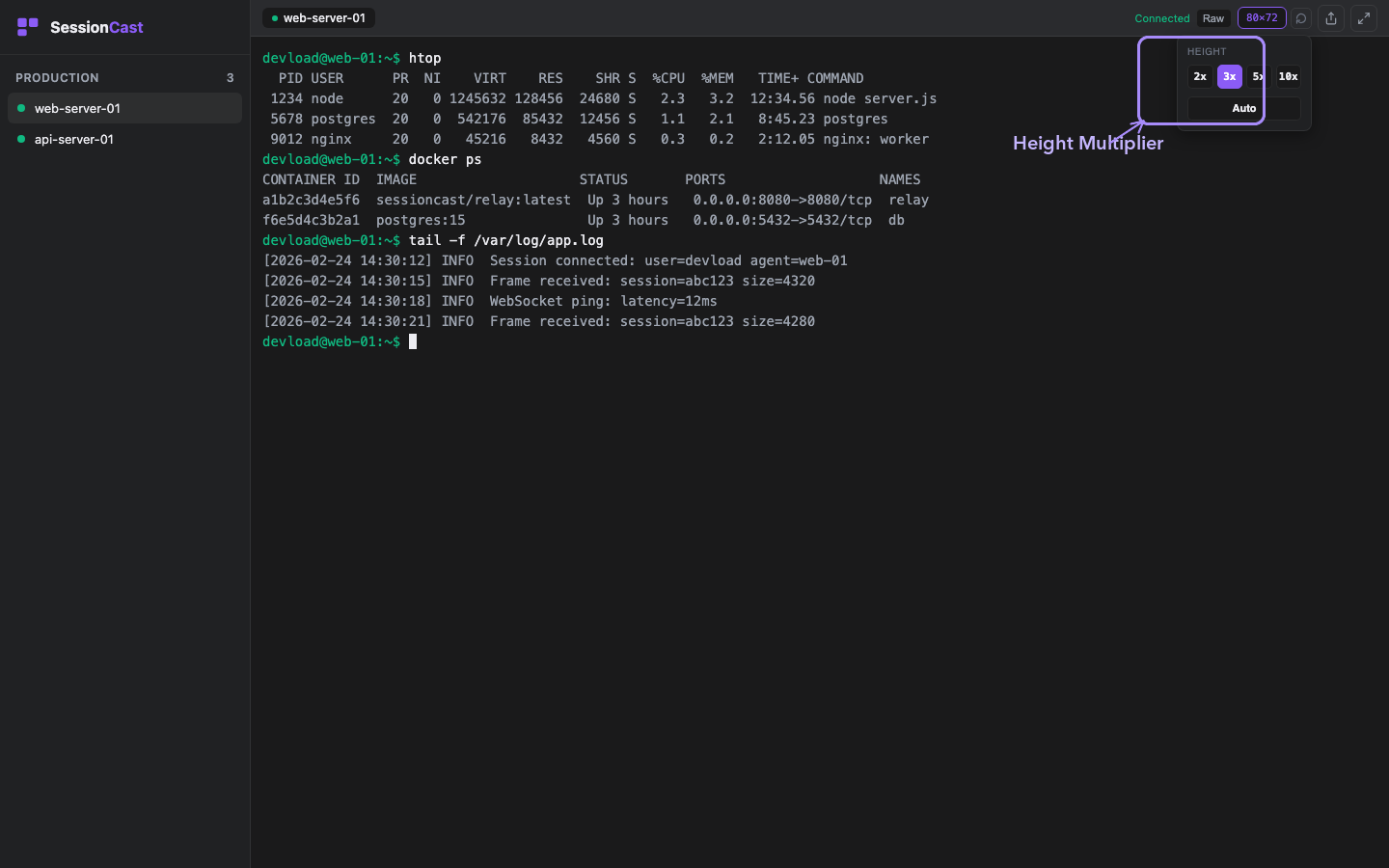
More Visible Content
With a higher multiplier, the terminal expands vertically and you can scroll through more output without losing context. The badge updates to show the new dimensions (e.g. 80x120 at 5x).
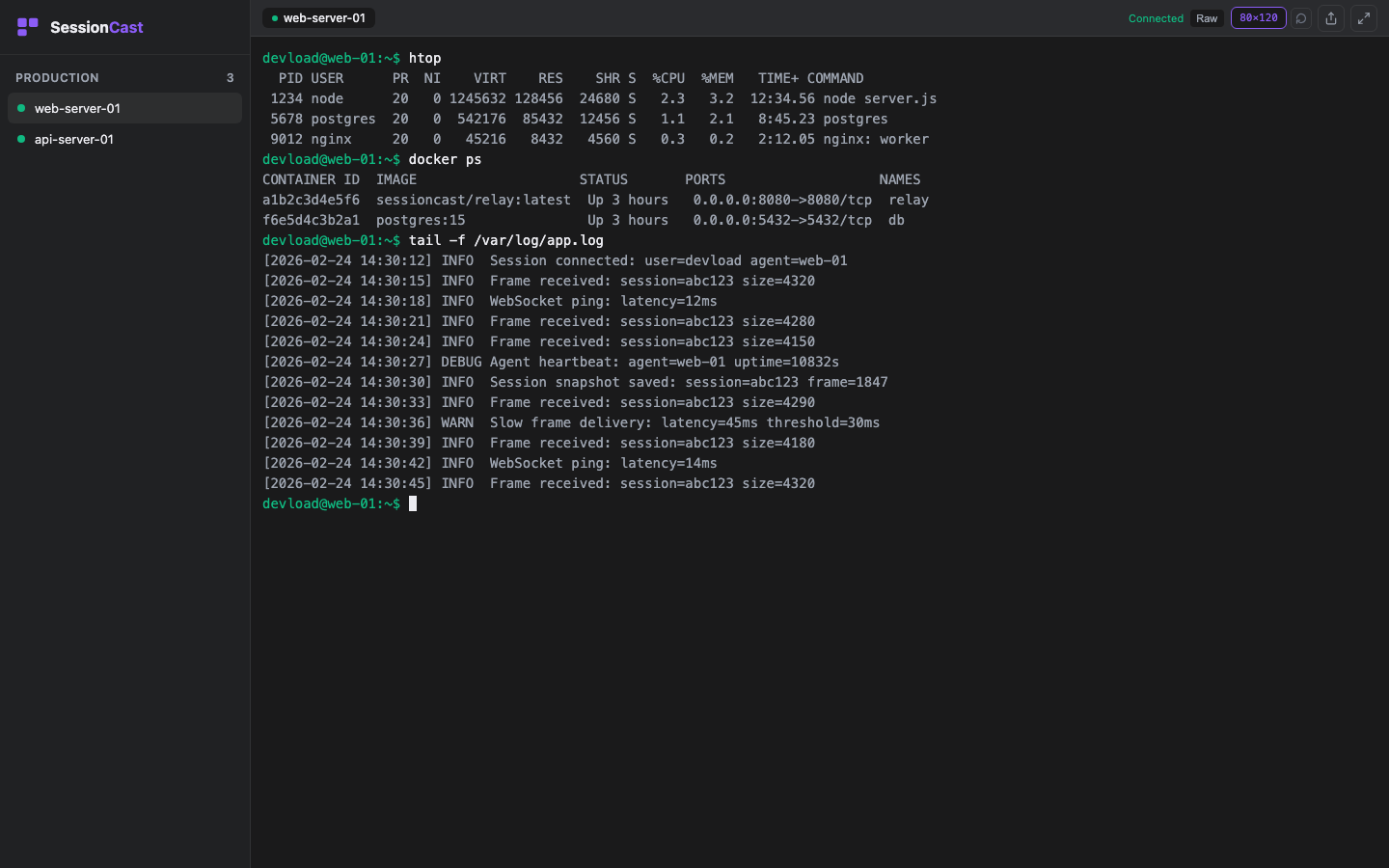
Scrollback Buffer
The terminal now maintains a 500-line scrollback buffer. Combined with height multipliers, you can comfortably review long command outputs, log files, and build results — all within the web viewer.
This works with both single-pane and multi-pane layouts. Each pane resizes independently when using split views.